Deploy to TrueNAS
Domain Locker is available as a community app on TrueNAS, and can be installed directly from the built-in app catalog with minimal manual configuration.
Prerequisites
- TrueNAS Community Edition
- Apps service configured and running
- see the Initial Setup guide if you haven't done this yet
Installation
- In the TrueNAS web UI, navigate to Apps in the left sidebar, then click Discover Apps.
- In the search box, type
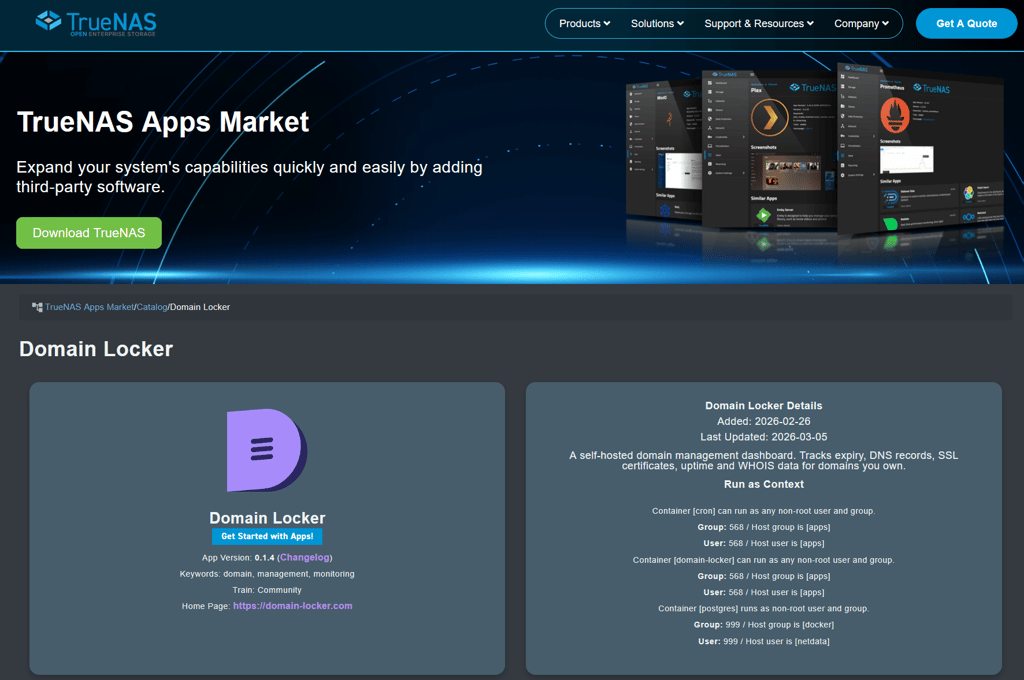
domain locker. The app will appear under the Networking category with thecommunitytrain badge. - Click the Domain Locker card to open its detail page. You will see the app description, version, keywords, and a link to the homepage.
- Click Install to open the installation wizard.
Configuration
The wizard presents the following options:
| Field | Description |
|---|---|
| Application Name | Instance name used internally by TrueNAS (default: domain-locker) |
| Timezone | Your local timezone (e.g. Europe/Prague) |
| Postgres Image | PostgreSQL version to use (default: Postgres 18 — change with caution) |
| Database Password | A strong password for the internal PostgreSQL database |
| Additional Environment Variables | Optional extra configuration passed as env vars (see below) |
Optional Environment Variables
Click Add under Additional Environment Variables to set any of the following:
| Variable | Example value | Purpose |
|---|---|---|
NOTIFY_WEBHOOK_BASE |
https://ntfy.sh |
Base URL for webhook notifications |
NOTIFY_WEBHOOK_TOPIC |
<your-domain-locker-alerts-topic> |
Topic/channel for webhook notifications |
DL_EXPIRATION_REMINDER_DAY |
30,14,7,3,2,1 |
Days before expiry to send reminders |
DNS_DUMPSTER_TOKEN |
<your-token> |
API token for DNS Dumpster integration |
For a full list of supported environment variables, see the Environment Variables docs.
Storage Configuration
The wizard includes a Storage Configuration section for the Postgres data volume. You have two options:
- ixVolume (default) — TrueNAS automatically creates and manages a dataset for you. This is the easiest option and requires no extra setup.
- Host Path — Mount an existing directory on your system. Use this if you want full control over where the database files are stored or want to back them up independently.
- Optionally enable Automatic Permissions to let TrueNAS set the correct ownership automatically.
Network Configuration and other sections
The Network Configuration section defaults to port 30376 published on the host for external access. The Resources and any remaining sections can be left at their defaults unless you have specific requirements.
Finish Installation
Once all sections are configured, click Install. TrueNAS will pull the container image and start the app. You can monitor progress in Apps > Installed.
Accessing Domain Locker
Once the app status shows Running, click Web UI on the app's detail panel to open Domain Locker in your browser.
The default port is 30376. If you use a reverse proxy, point it at <truenas-ip>:30376.
Updating
TrueNAS will notify you when a new version is available. You can update from Apps > Installed by clicking the update indicator next to Domain Locker, or by running Update All. To roll back, click the Roll Back button on the app's detail page and select a previous version.
Notes
If the app name
domain-lockeris already in use (e.g. from a previous install), choose a different name or delete the existing instance first.For a general walkthrough of the TrueNAS app installation process, see Installing Apps in the TrueNAS documentation.
Thank you @aidik for submitting it (truenas/apps#4475)!